Have you ever seen one of those incredible images that, when you look closely, is made up of thousands of smaller photographs? Creating such a photographic mosaic—also known as a montage picture—might seem like a task reserved for graphic design experts with endless patience. The idea of manually placing hundreds or thousands of images is enough to discourage anyone. This is where AndreaMosaic v3.50.1 comes in. This powerful, yet surprisingly accessible free mosaic software automates the entire complex process, transforming your vision into a stunning, detailed mosaic with just a few clicks. This guide will deconstruct AndreaMosaic into simple, actionable steps and provide an honest review to help you master this unique creative tool.
What is AndreaMosaic? Your Automated Mosaic Artisan
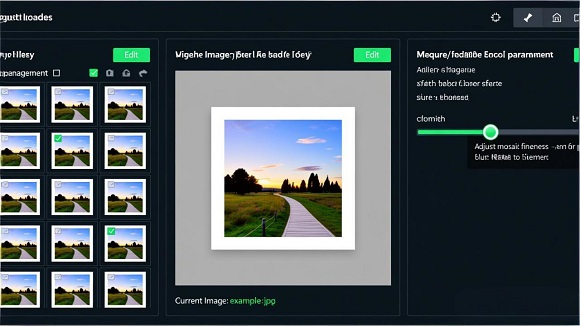
AndreaMosaic is a specialized free mosaic software for Windows designed for a single, brilliant purpose: to create large, detailed photomosaics automatically. You start with one "Main Image" (the picture you want the final mosaic to look like, like a portrait or a landscape). Then, you provide a library of hundreds or thousands of smaller images called "tiles" (your vacation photos, a collection of nature shots, etc.). The software then works its magic: it breaks down the Main Image into a grid, analyzes the color of each cell, and intelligently selects and places the most fitting tile from your library to recreate the overall picture. The result is a montage picture that reveals its intricate detail up close while forming a coherent image from afar. It's a free tool that turns a technically daunting project into a manageable and fun creative process.
Mastering the Workflow: A 4-Step Action Plan
Follow this structured approach to go from a collection of photos to a finished masterpiece.
Phase 1: Foundation – Gathering Your Tile Library (The Most Important Step)
The quality and variety of your tile images directly determine the quality of your final mosaic.
Action: Before even opening the software, gather a large folder of images. For a good result, aim for at least 500-1000 images. For a detailed, high-quality mosaic, 10,000 or more is ideal. The images can be of anything, but a diverse mix of colors, subjects, and lighting conditions will give the software more "paint" to work with.
Pro Tip: You can use entire folders. AndreaMosaic will scan all images within your chosen folder and its subfolders to build its internal library. You can also add individual images or exclude specific subfolders for better control.
Phase 2: Setup – Creating Your First Tile List
This is where you teach AndreaMosaic what materials it has to work with.
1. Launch and Set Aspect Ratio: Open AndreaMosaic. The first prompt asks for the tile aspect ratio (commonly "Square" for most mosaics). Select according to your tile images.
2. Open the Tile Images Window: Click the "Tile Images" button in the main interface.
3. Add Your Image Folders: In the new window, use the "Add Folder" button to select the directory where your tile images are stored. You can add multiple folders. The software will scan and analyze all compatible images (like JPGs).
4. Save the Tile List: After adding folders, click "Save" or "Save As." AndreaMosaic will process all images (this may take a while for large libraries) and save a `.tiles` list file. You can reload this list for future projects, saving time.
Phase 3: Design – Configuring Your Mosaic Parameters
Now, configure how the final mosaic will look.
1. Load Your Main Image: Click the "Open" button in the "Main Image" section or drag and drop your target image (the final picture) into the software window.
2. Adjust Key Parameters in the Main Window:
Mosaic Size & Resolution: Set your desired physical size (e.g., in inches) and print resolution (DPI). This controls the final output dimensions and quality.
Tile Count (Tile Size): This is critical. A higher tile count means more, smaller tiles, resulting in a finer, more detailed mosaic that better resembles the Main Image. A lower count makes individual tiles more recognizable but the overall image less clear. Experiment here.
Tile Duplication & Spacing: To avoid the same tile repeating too often, set the "Use same tile up to..." value low (e.g., 1-3 times). The "Duplicate spacing" setting ensures the same image isn't placed too close to itself.
Phase 4: Creation – Generating and Refining Your Mosaic
1. Generate the Mosaic: Click the "Create Mosaic" button. The software will now work, matching tiles to the Main Image. Processing time depends on the image and tile library sizes.
2. Review and Iterate: Your first result might not be perfect. Use the Mosaic Information panel to see statistics. If tiles are repeating too much, add more images to your library or adjust the duplication settings. If colors seem off, experiment with the "Color Change" slider, which controls how much the software can adjust a tile's color to match the target.
3. Explore Advanced Options: For advanced control, open the "More Options" window. Here you can adjust color matching priorities, add borders to tiles, output to different file formats, or even create a web page to showcase your mosaic.
In-Depth Review: Is AndreaMosaic Right for You?
Strengths:
Unmatched for its Niche: For creating true, large-scale photomosaics, it is arguably the best free free mosaic software available.
Surprisingly Powerful and Deep: Behind its straightforward interface lies a engine capable of handling tens of thousands of images and producing gigapixel-sized outputs, with professional version options for even larger projects.
High Degree of Control: While automated, it offers granular control over tile usage, color matching, spacing, and output format, allowing both beginners and advanced users to fine-tune results.
Excellent for Batch Processing: You can load multiple Main Images and create mosaics for all of them in one go, a huge time-saver.
Considerations:
The "Garbage In, Garbage Out" Rule: The output is entirely dependent on your input. A small or thematically narrow tile library will produce poor results.
Learning Curve for Optimization: Getting a good mosaic is easy; getting a perfect one requires understanding and tweaking parameters like tile duplication, color change, and spacing.
Windows-Only and Dated UI: It is a Windows application with an interface that hasn't changed much over the years, which may feel outdated but remains functional.
Resource Intensive: Processing a mosaic with a large Main Image and a huge tile library (10,000+ images) can demand significant RAM and CPU time.
Final Verdict:
AndreaMosaic v3.50.1 is a specialist tool that excels at its one job. It democratizes the creation of photographic mosaic art, removing the technical barrier and leaving you with the creative decisions: choosing the subject and curating the tile library. If you have a large collection of photos and want to create a stunning, personalized piece of art—a wedding gift, a family portrait, or a unique poster—this free mosaic software is an incredibly powerful and rewarding tool. The investment of time in building your image library is repaid tenfold by the awe-inspiring result.
(Important Download Note)
Official Download Address: https://www.andreaplanet.com/andreamosaic/download/.