We all have those moments. A birthday sneaks up, a holiday arrives, and you're staring at a screen full of generic, impersonal e-cards that don't feel right. You want to send something warm, something that features your own photo from that great vacation or a picture of the family, but diving into complex design software feels like overkill. This is the gap Ashampoo Photo Card is built to fill. It’s dedicated greeting card software designed for one purpose: to turn your personal photos into polished, physical or digital cards quickly and with a touch of elegance. But between picking a template and printing, users often hit snags that can frustrate the creative process. This guide tackles those common problems head-on.
Problem 1: My Photo Looks Out of Place or Clashes with the Card Design
You've chosen a beautiful template and dropped in your photo, but instead of blending seamlessly, it looks pasted on. The colors feel off, or the composition is awkward.
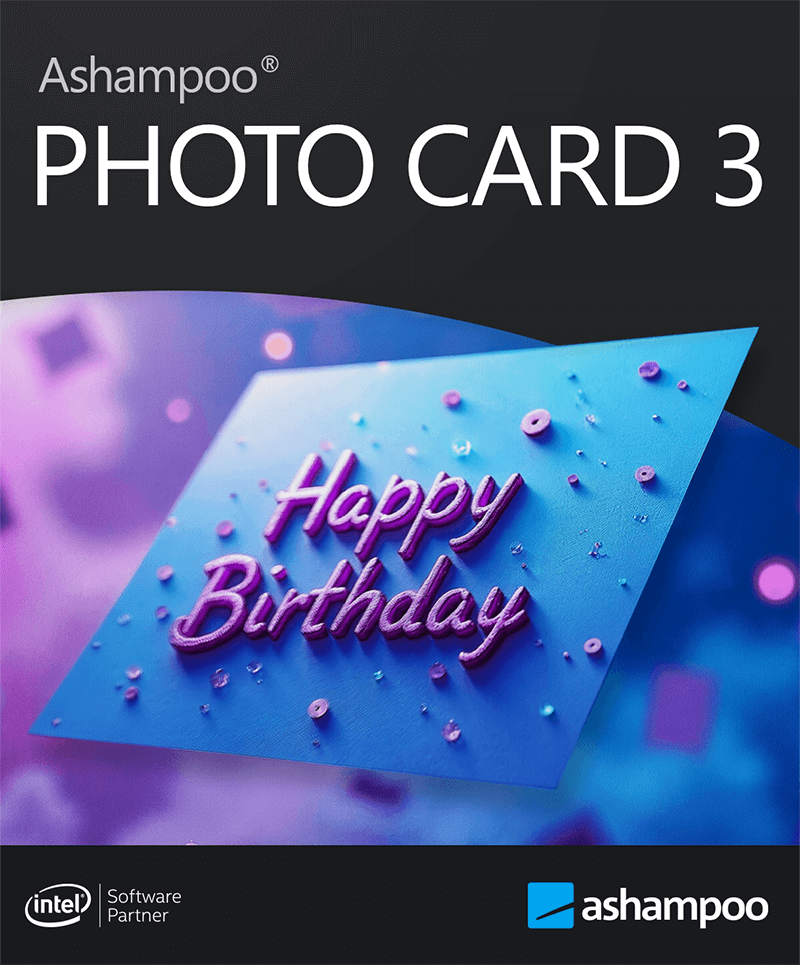
Solution: Master the Built-In Photo Editing Tools.
Ashampoo Photo Card includes basic but crucial photo adjustment tools for this exact reason. Don't just accept the default look.
Adjust Opacity and Blending: A key trick is to reduce the opacity of your photo layer, especially if the template has a strong background pattern or text. This allows the design elements to show through subtly, integrating your image into the card rather than having it sit on top.
Fine-Tune Color Harmony: Use the brightness, contrast, and color saturation sliders. If your photo is too cool (blue tones) and the template is warm (red/cream tones), slightly increase the photo's warmth via saturation to create a more cohesive feel. The goal isn't to heavily edit the photo itself, but to make it harmonize with its new context.
Flip and Mirror for Better Composition: The simple horizontal and vertical mirroring tools are surprisingly useful. If your subject is looking off to the left but the card's text block is on the left, mirroring the photo can create a more natural visual flow toward the message.
Problem 2: The Text Looks Bland or Gets Lost on the Card
The default font and placement might not highlight your personal message. It can look like an afterthought or be hard to read against a busy background.
Solution: Think Beyond the Default Text Box.
Layering Text for Impact: Instead of one block of text, create two. Use a larger, decorative font for a key word like "Celebrate!" or the recipient's name with low opacity as a background watermark. Then place your main message in a simpler, more legible font over it. This adds depth.
Leverage Clipart as Text Elements: The integrated clipart library isn't just for decorations. Search for symbols like hearts, stars, or flourish icons. Place them as bullet points before lines of text, or use a large, transparent icon behind your text as a subtle highlight shield, making it readable on any background.
Control and Curate: Remember, you can add, edit, and style every text element. Don't be afraid to move text blocks to empty areas of the composition for better balance.
Problem 3: Needing a Card Right Now with a Live Photo (No Existing Image)
A relative calls over video chat and you wish you could include that live moment in a quick card. Or you simply don't have the perfect photo saved.
Solution: Use the Direct Camera Support Feature.
This is a standout, practical feature often overlooked. Ashampoo Photo Card allows you to take a photo directly using your computer's webcam within the software. For a truly spontaneous and personal card:
1. Choose your template first.
2. When prompted to add a photo, look for the camera icon or option.
3. Compose your shot—maybe holding a small sign or with a big smile—and capture it.
4. The photo is imported instantly. Since the lighting and resolution are controlled, it often integrates into the card's layout more predictably than an external photo, saving you cropping and adjustment time.
Problem 4: The Final Card Looks Great On-Screen but Disappointing When Printed
Colors look different on paper, or the image appears pixelated. This ruins the physical result.
Solution: Prepare for Print from the Start.
Soft Proof Your Colors: While Ashampoo Photo Card isn't a professional printing suite, you can simulate a rougher output. Before finalizing, slightly increase the contrast and saturation by about 5-10%. Monitors emit light, while paper absorbs it; this small boost often compensates for the dulling effect of inkjet printing.
Choose the Right Export/Print Quality: When saving your final card to send to a printer or to print at home, always select the maximum available quality or resolution setting. The software is designed to create high-quality photo cards suitable for printing. A low-resolution JPEG will look fine on a screen but reveal blurry edges and artifacts on paper. If printing at home, do a single test print on plain paper first to check layout and color.
Problem 5: Wanting to Create a Coherent Set of Cards for an Event
Designing a wedding invitation, thank-you note, and save-the-date that all look like part of a set feels daunting. Starting from scratch for each one is inefficient.
Solution: Create and Save Your Own Custom Template.
1. Design your first card (e.g., the invitation) meticulously—choose a color palette, select a primary font, and perhaps a border style or background pattern.
2. Once perfect, save this project file as your "Master Template."
3. For the next card in the set (e.g., the thank-you note), open the Master Template. Now, instead of starting over, you simply swap the main photo and change the text. The core design elements—colors, fonts, layout balance—remain consistent, creating a professional, unified stationery set with minimal effort.
The Verdict: A Focused Tool That Excels Within Its Lane
Ashampoo Photo Card won't replace Adobe Photoshop for image manipulation, nor will it compete with Canva's vast cloud-based template library for social media graphics. And it’s worth noting it is paid software, typically costing around $20, with a 30-day trial available. Its strength is its focus. It provides a streamlined, Windows-native environment for merging personal photography with celebratory card design.
It solves the core problem of making personalized, photo-centric cards feel accessible. The learning curve is gentle, the tools are sufficient for their intended purpose, and features like direct camera integration are smart touches for genuine personalization. For anyone who finds themselves wanting to send more than just a photo or a plain text message—for holidays, birthdays, weddings, or simple greetings—this software removes the intimidation factor. It guides you to a polished result, providing just enough creative control to make the card feel uniquely yours, without overwhelming you with possibilities. In a world of mass digital communication, that personal touch is exactly what makes a greeting meaningful.
Official Download & Information
You can download the latest version, find detailed specifications, and purchase Ashampoo Photo Card from the official Ashampoo website. This ensures you receive a legitimate copy with access to support and updates.
Official Website: https://www.anrdoezrs.net
Disclosure: We may earn a commission if you choose to purchase a license through our link, at no extra cost to you. This supports our work in providing detailed, unbiased software reviews.