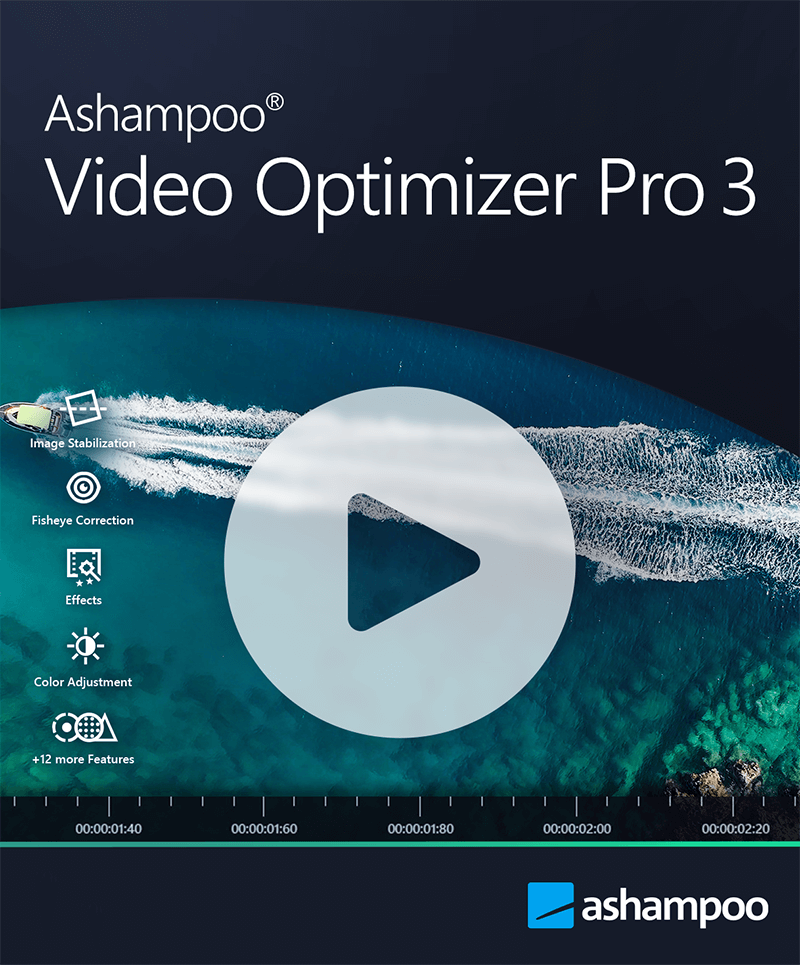
You've come back from a trip or finished recording an event, only to find your videos aren't quite what you hoped for. The colors look flat, the camera shakes distractingly, or that beautiful wide-angle shot has a weird fisheye curve. Opening a full-scale video editor for these tweaks feels like overkill, but you still want professional-looking results. This is the exact gap Ashampoo Video Optimizer Pro 3 fills. It’s not a timeline-based editor for building movies from scratch, but a focused tool for what many creators need most: quickly enhancing and correcting existing footage. Think of it as a one-stop repair shop for your videos, designed to be intuitive yet powerful.
While it promises to make your clips shine with just a few clicks, diving into a new piece of software always brings questions. Here are some common hurdles users face and how to navigate them effectively.
Problem 1: “My Footage Looks Dull and Lifeless”
You review your clips, and they look washed out or lack the vibrancy you remember. This is often due to flat color profiles or incorrect exposure.
Solution: Leverage Presets and Targeted Manual Controls.
Don't start from zero. Ashampoo Video Optimizer Pro 3 includes 20 preset configurations that do more than just add a filter. These are complex profiles that adjust lighting, tone, saturation, and even add subtle vignetting to instantly change the entire mood—from a cold "Nordic" look to a warm, reddish tone.
1. Start with a Preset: Apply a few different presets to your clip to see which direction you like. It’s the fastest way to find a good baseline.
2. Fine-Tune Manually: Go to the color and contrast optimization panel. Here, you can manually adjust the white balance to make a scene warmer or cooler, which is especially useful for fixing the sometimes sterile look of digital cameras. Sliders for brightness, shadows, and highlights let you add depth and recover details.
3. Target Specific Issues: For shots that are consistently too dark or lack contrast, the automatic optimization feature can be a great first step to see what the software recommends before you make your own tweaks.
Problem 2: “The Camera Shakes Ruined an Otherwise Perfect Shot”
Handheld footage, especially from phones or action cameras, can be unwatchably shaky.
Solution: Use the Powerful Stabilization Feature Judiciously.
The software includes a strong video stabilization tool designed to correct camera shake.
1. Apply and Preview: Apply the stabilization effect. The software will analyze the footage and smooth out the motion.
2. Mind the Crop: Be aware that stabilization often requires the software to crop into the frame slightly to keep the edges stable. Always preview the result in full screen to ensure the cropping isn't too severe and that the smoothed motion looks natural.
3. It's for Correction, Not Miracles: This tool excels at fixing moderate handheld jitters. For extremely chaotic, bouncy footage, it may have limitations.
Problem 3: “Low-Light Footage is Noisy and Unfocused”
Videos shot in dim conditions often suffer from digital grain (noise) and can appear soft or blurry.
Solution: A Two-Step Process of Noise Removal and Sharpening.
Ashampoo Video Optimizer Pro 3 tackles these issues hand-in-hand.
1. Remove the Noise First: Use the digital noise removal tool. Apply it gently; sliding the strength too high can make the video look like a smeared painting. The goal is to reduce the distracting grain while preserving detail.
2. Then, Add Sharpness Cautiously: After reducing noise, use the sharpening tool. Sharpening enhances edges and can make the overall image appear clearer. However, sharpening noisy footage will amplify the grain, which is why the order of operations is crucial. The software can also automatically detect and help fix flickering caused by poor lighting.
Problem 4: “My Action Camera Footage Has a Weird Fisheye Distortion”
The ultra-wide lenses on GoPros and similar cameras create a curved, bulging effect that can be unnatural, especially on large screens.
Solution: Correct Lens Distortion with Built-in Profiles.
1. Find Your Profile: Navigate to the lens correction module. The program comes with profiles for many popular camera models. Select the one that matches your device.
2. Check the Result: The software will straighten lines and remove the fisheye effect. The change can be dramatic, making the scene look more natural and proportional. If your camera isn't listed, you can even create a custom profile.
Problem 5: “I Need to Quickly Edit Many Clips the Same Way”
You have a whole folder of videos from the same event that need the same color correction and stabilization.
Solution: Master the Batch Processing Feature.
This is where the software saves immense time.
1. Add Multiple Files: Instead of opening a single video, use the batch mode to load your entire folder of clips.
2. Apply Your Formula: Set up your desired combination of effects—for example, a specific color preset, stabilization, and noise reduction.
3. Process Overnight: Click start, and the software will automatically apply the same enhancements to every video in the queue. You can even use this batch mode to add metadata like author or copyright info to multiple files at once.
The Verdict: A Streamlined Power Tool for Video Polish
Ashampoo Video Optimizer Pro 3 carves out a useful niche. It won't replace a full-featured editor like Premiere Pro for complex storytelling, and it's distinct from Ashampoo's own more specialized SHARPEN Video #3 tool, which focuses intensely on AI-powered sharpening and blur analysis. Similarly, it's not the multi-track creative suite that Ashampoo Movie Studio Pro is.
However, for its core purpose—quickly enhancing video quality, fixing common flaws, and applying stylistic touches—it is impressively effective. The redesigned interface is clean and logical, the presets are genuinely useful starting points, and tools like batch processing make it practical for real-world use. It supports a wide range of formats, including high-resolution 4K and H.265 footage.
If your primary need is to take decent raw footage and make it look great without a steep learning curve or a lengthy editing process, this video enhancement software delivers. It turns tedious manual corrections into a streamlined workflow, letting you focus more on capturing moments and less on fixing them.
Official Download & Information
You can download the latest version, start a free 14-day trial, and purchase Ashampoo Video Optimizer Pro 3 from the official Ashampoo website. This ensures you receive a legitimate copy with access to support and future updates.
Official Website: https://www.tkqlhce.com.
Disclosure: We may earn a commission if you choose to purchase a license through our link, at no extra cost to you. This supports our work in providing detailed, unbiased software reviews.