We've all been there. You need to trim a bit of audio for a video, clean up a noisy recording, or just record a simple voice memo. You think about opening a fancy subscription-based audio editor and then think about the monthly bill. That's exactly when I fire up Audacity, the free, open-source workhorse that's been in my toolkit for over a decade.
It's the Swiss Army knife of audio editing. Not always the prettiest or the most streamlined tool for a single job, but when you need to get something done—especially something unexpected—it's almost always up to the task. Here’s my honest take, from years of using it for podcasts, video voiceovers, and quick audio fixes.
The Core of Its Appeal: Why I Keep Coming Back
Audacity's biggest strength isn't just that it's free (as in, completely $0.00). It's that it's free and powerful. There's no trial period, no watermark, no “Export” button locked behind a paywall. You download it, and you own a fully-functional, professional-grade audio editor. This open-source model means a community of developers and enthusiasts are constantly improving it.
Beyond the price tag, its interface, while a bit old-school, is logical and comprehensive. Everything is laid out in menus and toolbars. It doesn't hide its advanced features. For someone like me who wants to see the waveform and dive right in with keyboard shortcuts, it’s efficient.
What I Actually Use It For: My Go-To Tasks
I don't use Audacity for everything, but for these jobs, it's my first choice:
Podcast Editing (The Basics): For straightforward, single-voice podcasts or interviews, it's perfect. I use it to cut out long pauses, ums, and ahs. The multi-track view lets me layer intro music underneath my voice smoothly.
Noise Reduction (Its Secret Weapon): This is where Audacity often saves a recording. If I have a section with just background hum (like a computer fan), I can “capture” a noise profile and then tell Audacity to remove that same sound from my entire voice track. The results can be startlingly good.
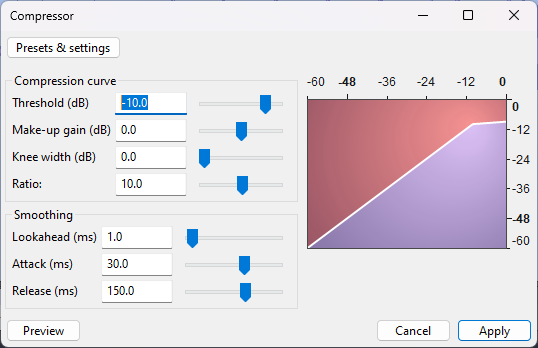
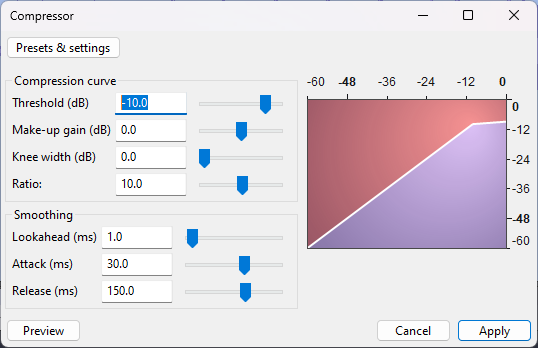
Quick Format Conversions & Volume Fixes: Need to turn an MP3 into a WAV, or boost the volume of a quiet clip? It's a drag-and-drop job in Audacity. The “Amplify” and “Compressor” effects are simple and effective for making voiceovers consistent and punchy.
Recording Straight From My Mic: It’s a reliable, no-fuss recorder. I can set my input source, hit the big red button, and get a clean, high-quality WAV file.
The Trade-Offs: Where It Can Feel Like Work
It’s not all smooth sailing. Audacity has a learning curve. Its interface can look intimidating to a true beginner, with lots of tiny icons. You might need to watch a tutorial or two to grasp the basic workflow, unlike some modern apps that guide you.
It’s also not a non-destructive editor. This is a key technical point. When you apply most effects in Audacity (like that noise reduction), you’re permanently altering the original audio clip on your timeline. If you change your mind later, you have to undo or re-import the original file. Modern “digital audio workstations” (DAWs) apply effects as adjustable layers, which is much more flexible for complex projects.
Finally, for music creation or highly polished, multi-track productions, it starts to show its limits. Its MIDI and instrument capabilities are basic compared to dedicated DAWs.
Audacity vs. The Rest: My Personal Decision Guide
For quick edits, noise cleanup, and learning the basics: Audacity wins, hands down. The price (free) and power are unbeatable for entry-level and intermediate tasks.
For serious podcasters with multiple guests and lots of post-production: I often move to something like Descript or Adobe Audition. Descript’s text-based editing (where you edit audio by deleting words in a transcript) is a game-changer for long-form content, and Audition’s destructive editing and advanced tools are more professional.
For music production or beat-making: You’ll quickly outgrow Audacity. Look at GarageBand (free on Mac), LMMS, or Reaper (which has a very generous, low-cost license).
Who It's Really For: My Verdict
Audacity is the perfect foundational audio tool. I recommend it without hesitation to:
New podcasters and YouTubers who don't have a budget for software but need professional-grade editing capabilities.
Students and hobbyists who want to learn audio editing concepts without financial pressure.
Anyone who needs a reliable, “just-in-case” audio editor for odd jobs—it's the first piece of software I install on any new computer.
It taught me more about how audio works than any other program. While I now use more specialized tools for specific jobs, I still keep Audacity on my desktop. There’s a certain peace of mind knowing there’s a powerful, free tool ready to handle almost any audio problem I throw at it.
Want to give it a spin? The best way to see if it fits your workflow is to download it from the official site https://www.audacityteam.org/ and try cleaning up an old recording. You might be surprised at what you can achieve.