In today's digital world, our precious memories and important files are scattered across countless folders and hidden directories on our computers. Manually finding and backing up specific types of files—like all your photos, music, or videos—to a USB drive can be a tedious and time-consuming chore. Enter Data2Pocket, a specialized Windows tool designed to eliminate this hassle. This comprehensive guide and review will explore how Data2Pocket works, who it's for, and whether it's the right portable data management solution for you.
What is Data2Pocket?
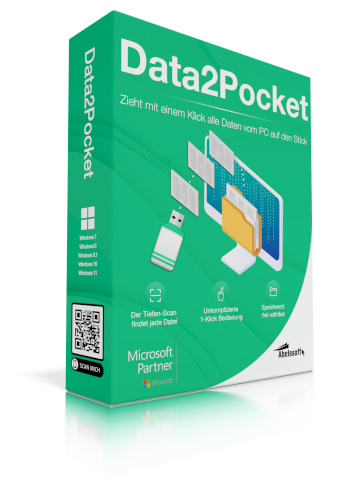
Data2Pocket is a streamlined desktop application developed by the German software company Abelssoft. Its core mission is simple: to help you quickly find, gather, and transfer specific categories of files from your computer to a portable storage device, such as a USB flash drive, external hard drive, or SD card. Unlike a full-system backup tool, Data2Pocket focuses on selective media backup, acting like a smart assistant that knows exactly where to look for your photos, videos, music, and documents. It's designed for users who value simplicity and speed, offering a guided process that is much more efficient than manual copy-paste operations.
A Step-by-Step Guide to Using Data2Pocket
Using Data2Pocket is a straightforward, wizard-driven process. Follow these steps to back up your media files in minutes.
Phase 1: Installation and Initial Setup
1. Download and Install: Obtain the Data2Pocket installer from the official Abelssoft website or a trusted software repository. Run the installer, follow the on-screen prompts to agree to the license terms and choose an installation directory, then complete the setup.
2. Launch and Connect: Open Data2Pocket. Before starting, insert your target portable storage device (e.g., your USB drive) into the computer. The software is designed to automatically recognize connected devices.
Phase 2: Selecting Your Files
3. Choose File Types: The first step in the wizard is to select the categories of files you want to find and back up. You can choose one or multiple types, typically including Pictures, Music, Videos, and Documents.
4. Define Source Locations: Next, tell the software where to search. You can select specific folders (like "Pictures" or "Downloads") or entire drives. Data2Pocket's strength is its ability to perform a deep system scan, checking common and hidden locations where your files might be stored.
5. Apply Advanced Filters (Optional): To narrow down the search further, you can apply filters. This is a powerful feature that allows you to limit files by size (e.g., only files larger than 1 MB) or by creation/modification date (e.g., files from the last year). This helps in managing backup size and relevance.
Phase 3: Review and Execute the Transfer
6. Start the Scan: Click the button to begin the scanning process. Data2Pocket will quickly list all files matching your criteria. You can review this list before proceeding.
7. Configure Output and Transfer: Choose your connected USB drive as the destination. You often have the option to either copy all files into a single folder on the drive or preserve the original folder structure from your computer. Once configured, click the transfer button.
8. Monitor and Complete: A progress bar will show the status of the file copy operation. Once complete, you will receive a confirmation, and your files are safely stored on your portable device.
In-Depth Review and Analysis
Core Strengths:
Unmatched Convenience for Media Backup: For users who want to quickly gather all media files of a certain type, Data2Pocket is a significant time-saver. It automates the most tedious part: the search and collection process.
Intelligent and Deep Scanning: The tool excels at finding files you may have forgotten about, searching through download folders, hidden app data folders, and other "corners" of your system.
User-Friendly, Wizard-Based Interface: The step-by-step interface makes the process accessible even for computer beginners. There are no complex settings to configure.
Lightweight and Fast: The software is small in size and performs scans and transfers efficiently without heavily taxing your system resources.
Considerations and Limitations:
Niche Use Case: Data2Pocket is not a general-purpose file sync or full-disk backup tool (like FreeFileSync or Macrium Reflect). Its primary function is the batch migration of specific file types to removable media.
Potential for Over-collection: Without careful use of filters, a broad scan might collect a large number of system or cache files you didn't intend to back up, quickly filling your USB drive.
Windows-Only Software: It is designed specifically for the Windows operating system (Windows 7 through 11).
Who is Data2Pocket For?
Data2Pocket is the ideal tool for:
Travelers and Students: Who want to quickly put their entire music or video collection onto a USB stick for use on another device.
Photography Hobbyists: Looking for an easy way to gather all JPG/RAW files from across their computer and back them up to an external drive.
Users Preparing for a PC Change: Who need to ensure all personal media files are found and extracted before selling or resetting their computer.
Anyone Who Finds Manual File Hunting Tedious: And prefers a simple, automated solution for creating portable media libraries.
Final Verdict
Data2Pocket excels in its specialized niche. It does one job—finding and transferring media files to portable storage—and does it with remarkable ease and speed. If your primary backup need involves regularly collecting scattered photos, music, and videos to take with you on a USB drive, Data2Pocket is an excellent file transfer software that eliminates hours of manual work. However, if you need versioned backups, system imaging, or continuous folder synchronization, you will need to look at more comprehensive backup solutions. For its intended purpose, Data2Pocket is a highly effective and recommendable tool.
Official Download Address:
You can download the latest version of Data2Pocket from Abelssoft's official website:
Data2Pocket 2025 |�Findet und speichert Dateien auf Deinem USB-Ger�t
Disclosure: We may earn a commission if you choose to purchase a license through our link, at no extra cost to you. This supports our work in providing detailed, unbiased software reviews.