In the world of video content creation and localization, precise subtitles are non-negotiable. Whether you're a filmmaker, a YouTuber, or someone personalizing media, the right tool makes all the difference. Subtitle Edit v4.0.14 stands out as a powerful, open-source, and completely free subtitle editor for Windows. This comprehensive guide will walk you through its capabilities, from basic editing to advanced automation, and provide a detailed review of why it's a favorite among professionals and hobbyists alike.
What is Subtitle Edit?
Subtitle Edit (SE) is a feature-rich application designed for creating, editing, synchronizing, and translating subtitle files. It supports an extensive array of subtitle formats (over 200), including `.srt`, `.ass`, `.vtt`, and those used for DVDs (`.sub`). Developed by Nikse, its philosophy is to provide professional-grade functionality without cost. It goes far beyond simple text editing, incorporating advanced features like waveform-based synchronization, automatic timing corrections, spell checking in 60+ languages, and integration with online translation services. It's the Swiss Army knife for anyone working with subtitles.
Core Workflow and Practical Usage Guide
1. Starting a New Project & Basic Editing
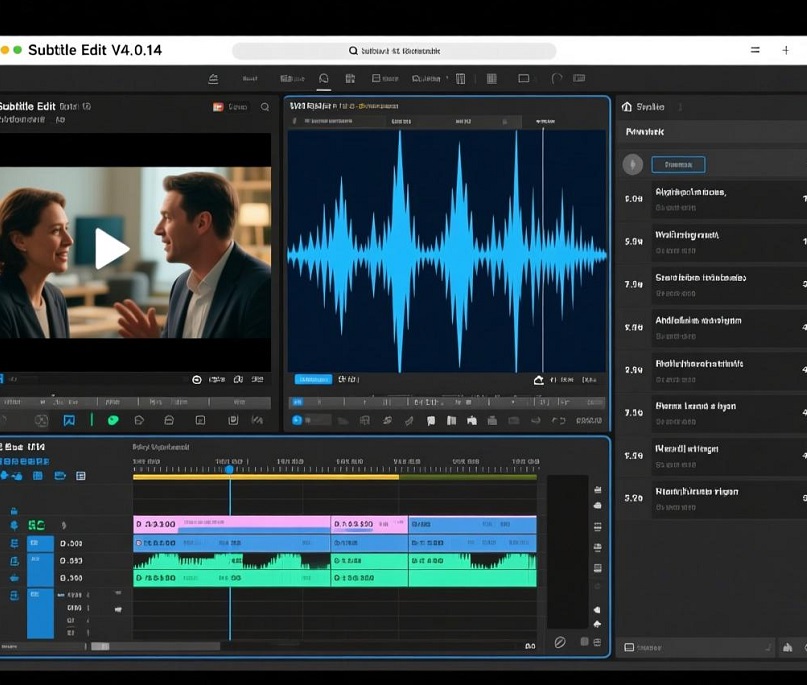
The interface, while packed with options, is logically organized.
Opening Files: You can start by opening a video file and a subtitle file, or just create subtitles from scratch. The main window is divided into the video preview, waveform/audio visualization, and the subtitle list editor.
The Editing Flow: Click on a subtitle line in the list to edit its text, start time, and end time. The changes are instantly reflected in the video preview. This direct visual feedback is crucial for accuracy.
2. Mastering Synchronization (A Key Strength)
Getting subtitles perfectly in sync with audio is where Subtitle Edit excels.
Point-and-Click Sync: In the "Synchronize" menu, use "Adjust times" to add delay or change the frame rate. For more precision, use "Visual sync" where you manually align a specific subtitle line to a spoken word by clicking on the waveform.
Waveform & Audio Analysis: Load the audio waveform from your video. You can see the peaks where speech occurs, making it easy to spot where subtitles should begin and end. The "Auto-transcribe" feature (using Vosk libraries) can even generate a rough text transcript with timestamps to start from.
3. Efficient Translation and Workflow Tools
Translation Assistant: Under "Tools," this feature splits the screen, showing the original text and allowing you to type the translation directly. It automatically moves to the next line, speeding up the process immensely.
Quality Check (Essential): Always run the "Check for errors" tool (`F2`). It identifies common issues like excessive reading speed (CPS/characters per second), short gaps between subtitles, overlapping times, and spelling errors. This ensures your subtitles meet broadcast or streaming platform standards.
Find/Replace & Auto-Translate: Use robust find/replace functions. For quick drafts, you can use the integrated machine translation (via Google Translate, etc.), but always review and edit these results for nuance and timing.
Pro Tips for Power Users
Customize Your Workspace: Under "Options," you can tailor the interface, shortcut keys, and default rules for quality checking to match your workflow.
Leverage Keyboard Shortcuts: Learning shortcuts like `Ctrl+Ins` (insert new subtitle), `Ctrl+Del` (delete), `F2` (check), and `F3` (find next) will drastically increase your editing speed.
Work with Styles (ASS/SSA): For advanced styling like karaoke effects, positioned text, or custom fonts, use the "Advanced Sub Station Alpha" (ASS) editor. Subtitle Edit provides full support for creating and editing these complex styles.
Batch Processing: Need to convert 100 `.srt` files to `.vtt`? Use the "Batch convert" tool under "File" to process multiple files at once, applying conversions or basic corrections automatically.
In-Depth Review: Strengths and Considerations
Strengths:
Unmatched Feature Set for the Price (Free): It offers tools often found only in expensive commercial software—waveform sync, quality checking, translation aids, and format support.
Open Source and Actively Developed: Being open-source ensures transparency, community-driven improvements, and freedom from ads or bloatware. Updates are frequent.
Deep Customization and Control: From fine-tuning timing down to the millisecond to creating complex ASS animations, it gives experts the control they need.
Essential Quality Assurance: The built-in checker helps create professional, accessible, and compliant subtitles by enforcing best practices.
Considerations:
Windows-Only Application: The primary desktop version is for Windows. There is an online version with limited features, and alternatives are needed for macOS/Linux.
Beginner Learning Curve: The sheer number of buttons and menus can be intimidating at first. New users should focus on the core editing and sync features before exploring advanced options.
Interface Design: The UI is functional and practical but may not win awards for modern aesthetics. Its strength is utility, not flash.
Who Should Use Subtitle Edit?
Content Creators (YouTubers, Filmmakers): For adding accurate captions to their videos for accessibility and reach.
Translators & Localization Specialists: The translation assistant and format support make it ideal for subtitle translation projects.
Media Enthusiasts & Fansubbers: For creating or syncing subtitles for personal media libraries.
Anyone Needing Reliable Subtitle Work: It's a professional tool accessible to all skill levels.
Final Verdict
Subtitle Edit v4.0.14 is a powerhouse that redefines what free software can achieve. It successfully bridges the gap between basic editors and high-end professional suites. While it demands a bit of initial exploration to master, the investment pays off in unparalleled control and efficiency. For any serious work with subtitles on Windows, from simple corrections to complex timed translations, Subtitle Edit is not just a good option—it is often the best option, regardless of price.
For creating subtitles with complex styles and karaoke effects, you can use Aegisub, another professional tool we've reviewed.
Official Download Address:
You can download Subtitle Edit v4.0.14 (and the latest versions) for free from its official GitHub repository or website. For the direct and trusted source, please visit:
https://github.com/SubtitleEdit/subtitleedit/releases.
https://www.nikse.dk/SubtitleEdit/.