In the realm of PC hardware, from the meticulous overclocker tuning their system to the IT administrator managing a fleet of computers, accurate information is power. While basic system tools offer a glimpse, true insight demands a professional-grade solution. HWiNFO (Hardware Info) has stood as the industry benchmark for decades, and version 8.40 reaffirms its position with cutting-edge support for the latest Intel, AMD, and NVIDIA hardware. This comprehensive guide will explore how to leverage HWiNFO's unparalleled depth for system monitoring, troubleshooting, and benchmarking.
What is HWiNFO?
HWiNFO is a comprehensive, professional-grade system information, diagnostic, and monitoring tool for Windows (and other platforms via ports). It goes far beyond simple component identification, offering a real-time look into the vital signs of your entire computer. Unlike simpler utilities, HWiNFO provides in-depth hardware analysis of everything from your CPU and GPU to your motherboard, memory, and drives, displaying architecture specifications, timing parameters, and sensor data with precision. Its core philosophy is to deliver the most accurate, reliable, and detailed data without compromise, making it trusted by enthusiasts, professional reviewers, and enterprise IT staff alike.
Core Functions and Initial Setup
Phase 1: Download and First Launch
1. Acquisition: Download HWiNFO from its official website. You can choose between the Installer or the Portable version. The portable version is ideal for running from a USB drive without leaving traces on the system, perfect for technicians.
2. Initial Run: Upon launch, you will encounter the System Summary screen, giving a quick overview of your core components. For most purposes, you will want to run in "Sensors-only" mode for monitoring or launch the full application for detailed diagnostics.
Phase 2: Navigating the Two Main Interfaces
HWiNFO effectively operates through two main windows:
1. The Main System Info Tree: This is your complete hardware encyclopedia. Expand the tree nodes (CPU, Motherboard, Memory, GPU, Drives) to see static details: model numbers, specifications, BIOS versions, memory SPD timings, and drive SMART health data.
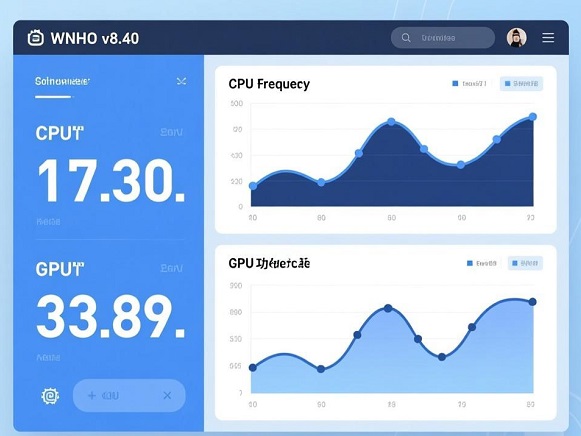
2. The Sensors Window: This is the heart of real-time monitoring. It displays dynamic readings from all available sensors on your system: temperatures for each CPU core and GPU, voltages, fan speeds (RPM), clock speeds, power consumption, and load percentages. You can customize this view extensively.
Pro Tips for Power Users and Effective Monitoring
1. Mastering Sensor Monitoring for Stability and Diagnostics
Customize Layouts: The sensor window can be overwhelming. Right-click to hide unnecessary sensors or use the "Logging Start/Stop" button to record all data to a CSV file for later analysis, ideal for diagnosing intermittent crashes.
Set Up Alarms: Prevent hardware damage by setting audible or visual alarms for critical parameters like CPU/GPU temperature. Right-click on a sensor (e.g., "CPU Package Temperature") and select "Alarm" to set a threshold.
Leverage v8.40's New Features: Utilize the new integrated Stress Test tool to load your system while monitoring sensors. Also, take advantage of the new dedicated NPU sensors for AMD and Qualcomm chips to monitor AI accelerator performance.
2. In-Depth Hardware Analysis and Reporting
Validate Upgrades and Compatibility: Before purchasing new RAM or an SSD, use the main info tree to check your motherboard's exact chipset, supported memory specifications, and available interfaces.
Generate Professional Reports: Use File -> Report to export your complete system configuration or sensor logs. Supported formats include HTML (for web viewing), CSV (for Excel analysis), and TXT. This is invaluable for tech support or documenting your build.
Monitor Next-Gen Hardware: With v8.40, HWiNFO offers early and precise support for upcoming platforms like Intel Nova Lake-H/HX (Core Ultra 400 series) and Arrow Lake Refresh, ensuring accurate sensor mapping and identification even on pre-release systems.
3. Integration and Advanced Use Cases
Benchmarking Context: Run HWiNFO sensors alongside benchmarks like Cinebench or 3DMark. The sensor log will show you exact temperatures, clock speeds, and power limits during the test, explaining performance results.
Preventive Maintenance: Regularly check the SMART attributes of your hard drives and SSDs in the main tree to assess health and predict potential failures before data loss occurs.
Low-Overhead Monitoring: The software is designed to be lightweight. You can keep the sensor window open as a compact bar or minimize it to the system tray with key stats (like CPU temp) displayed for at-a-glance monitoring.
In-Depth Review: Strengths and Considerations
Strengths:
Unmatched Depth and Accuracy: HWiNFO provides the most granular sensor data and hardware information available in any free tool, often more detailed than utilities provided by motherboard manufacturers.
Pioneering Hardware Support: The development team is exceptionally fast at adding support for new CPUs, GPUs, and chipsets, as evidenced by v8.40's support for unreleased Intel and AMD platforms.
Professional-Grade Features: From customizable sensor logging and alarms to detailed report generation and a portable version, it is packed with features that cater to professional needs.
Completely Free and Privacy-Focused: For personal and non-commercial use, it offers all features without cost, ads, or bundled software. It performs all analysis locally, transmitting no data, ensuring privacy.
Considerations:
Beginner Learning Curve: The sheer volume of data and the technical nature of many parameters can be intimidating for casual users seeking only basic information.
Windows-Centric: The primary, most feature-rich version is for Windows. While there are versions for other OSes, they may have different interfaces or feature sets.
Information Overload: Without customization, the default sensor window can display hundreds of readings, making it difficult to focus on the key metrics.
Who is HWiNFO For?
PC Enthusiasts and Overclockers: For fine-tuning system performance and ensuring stability under load.
Hardware Reviewers and Testers: For capturing precise data for benchmarks and reviews.
IT Professionals and System Builders: For diagnosing hardware issues, auditing system configurations, and managing assets.
Anyone Troubleshooting PC Instability: For identifying failing components (like overheating VRMs or a dying drive) through detailed sensor logs.
Final Verdict
HWiNFO v8.40 is not merely a tool; it is the definitive authority on what is happening inside your computer. It successfully bridges the gap between casual curiosity and professional-grade diagnostics. While its depth may surpass the needs of a basic user, for anyone who demands accuracy, detail, and early support for the latest technology—whether for passion, work, or troubleshooting—HWiNFO remains an indispensable, powerful, and utterly free cornerstone of the PC toolkit.
HWiNFO provides unparalleled depth of hardware data. For users who need to keep core metrics visible on their desktop, it can be paired with the O&O DeskInfo tool we've introduced. If the focus is on monitoring CPU and motherboard sensors specifically, SIV (System Information Viewer) is also a highly respected professional choice.
Official Download Address:
Download the latest version of HWiNFO (v8.40) from the official website:https://www.hwinfo.com/.