Are you tired of complex software and failed attempts when trying to create a bootable USB drive to install an operating system? Whether you're setting up a new Linux distribution, repairing your Windows PC, or need a portable diagnostic toolkit, the process should be simple and reliable. Universal USB Installer (UUI) v2.0.3.0 is the streamlined, free tool designed to turn that frustration into a few effortless clicks. This guide will walk you through mastering this Windows bootable USB creator, ensuring you can successfully deploy a portable OS on USB for installation, recovery, or testing.
What is Universal USB Installer?
Universal USB Installer, often abbreviated as UUI, is a free, lightweight, and dedicated software for Windows that creates bootable USB flash drives from ISO image files. Its core purpose is to eliminate the complexity often associated with this task. Unlike generic disk imaging tools, UUI is optimized for a wide range of systems, making it an excellent free Linux USB creator. It intelligently handles the necessary steps—formatting, extracting the ISO, and making the drive bootable—through an intuitive, step-by-step wizard. From popular Linux distributions like Ubuntu and Kali Linux to Windows installers and system rescue tools, it transforms your USB stick into a powerful, portable installation and recovery medium.
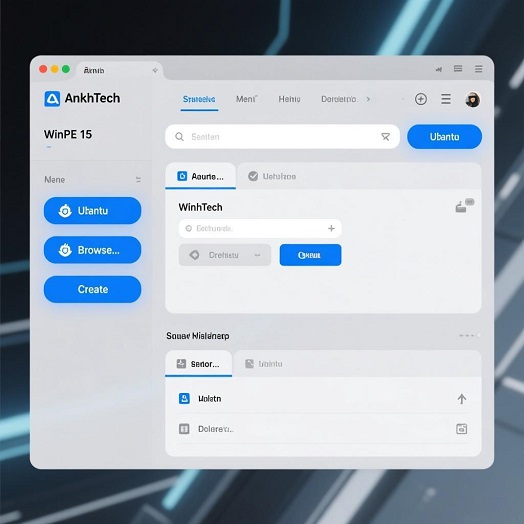
Mastering the Tool: A Step-by-Step Guide & Pro Tips
Using UUI is famously described as “easy as 1-2-3”. Follow this guide to ensure perfect results every time and unlock some useful tricks.
Phase 1: Preparation and Setup
1. Gather Your Materials: You will need a USB flash drive (4GB minimum for most Linux ISOs, 8GB+ for Windows). Warning: This process will erase all data on the drive, so back up any important files first.
2. Download the ISO: Obtain the ISO file for the operating system or tool you want to use (e.g., Ubuntu from its official site, Kali Linux).
3. Launch UUI: Run `Universal-USB-Installer.exe`. No installation is required; it's a portable application. You may need to run it as an administrator for proper system access.
Phase 2: The Core 3-Step Process
The main interface is your control panel. Here’s how to navigate it flawlessly:
Step 1: Select a Distribution: Click the dropdown menu in “Step 1.” Scroll through the extensive list to find your exact OS (e.g., “Ubuntu,” “Kali Linux,” “Windows 10 Installer”). This selection tailors the setup process for that specific system.
Step 2: Browse for your ISO: Click the “Browse” button in “Step 2” and navigate to the ISO file you downloaded. Pro Tip: If your file isn't visible, try entering `.` in the filename field and pressing Enter to show all files.
Step 3: Select your USB Drive: In “Step 3,” choose your connected USB drive from the list. Double-check the drive letter to avoid formatting the wrong disk.
Phase 3: Advanced Options and Creation
Persistence (For Linux Live USBs): A killer feature for Linux users. If you select a supported distribution like Ubuntu or Kali Linux, a slider labeled “Persistence” may appear. This allows you to reserve space on the USB drive to save documents, settings, and installed applications between sessions, making it a true portable OS on USB.
Formatting Options: For Linux drives, you can check “Format J:\…” to ensure a clean slate. The tool now supports formatting to exFAT by default, allowing you to use persistence files larger than 4GB.
Create!: Once configured, click “Create.” Confirm the warning about data loss. A progress bar will show the writing process, which can take several minutes depending on ISO size and USB speed.
Pro Tips for Power Users
Try Unlisted ISOs: The dropdown menu includes an option at the very bottom: “Try an Unlisted Linux ISO”. This allows you to use UUI with almost any bootable ISO file, greatly expanding its versatility beyond the predefined list.
Beyond Installation: Remember, a bootable USB can be used for more than just installation. You can boot into a “Live” environment to test-drive an OS without touching your hard drive, or use tools like GParted for disk management or antivirus rescue disks for system repair.
BIOS/UEFI Boot: After creation, you must configure your computer to boot from the USB drive. This usually involves pressing a key (like F12, F2, ESC, or DEL) during startup to access the boot menu or BIOS settings and changing the boot order.
In-Depth Review: Why UUI Stands Out
Strengths:
Simplicity is Key: The “1-2-3” wizard interface makes it one of the most straightforward Windows bootable USB creators available, perfect for beginners.
Linux-Focused Expertise: It shines as a free Linux USB creator, with built-in optimizations and persistence support for dozens of major and niche distributions, which general-purpose tools often lack.
Lightweight and Portable: The single executable file requires no installation and can be run from anywhere, making it a great tool for your tech support toolkit.
Persistence Feature: The ability to create a persistent storage space is a game-changer for using a portable, customized Linux environment anywhere.
Considerations:
Windows-Only: It is a tool designed for the Windows operating system.
Primarily for Creation: It is not a multi-boot manager. While you can create a drive with one system, managing multiple systems on one USB requires more advanced tools.
Interface Language: The interface is in English, but its visual, step-by-step design makes it usable regardless of language proficiency.
Final Verdict
Universal USB Installer v2.0.3.0 excels in its niche. It doesn’t try to be an all-in-one disk utility; instead, it focuses on doing one job—creating bootable USB drives—with remarkable ease and reliability. For anyone who needs to install Linux, create a Windows installer, or carry a portable diagnostic system, it is an indispensable and free tool that delivers professional results without complexity. Its focused approach on Linux and live environments makes it a top recommendation for developers, IT enthusiasts, and anyone exploring alternative operating systems.
Universal USB Installer offers an extremely simple, wizard-driven operation. If you require more advanced options (such as DD mode or persistent storage), you can refer to another powerful tool we have reviewed: Rufus. Once the bootable drive is created, it can be used to install an operating system or run a WinPE maintenance environment.
Official Download Address:
You can download the latest version of Universal USB Installer directly from its official website:
https://www.pendrivelinux.com/universal-usb-installer-easy-as-1-2-3/.