In the realm of secure remote administration and file transfer for Windows, Bitvise SSH Client has long been a cornerstone for IT professionals, developers, and system administrators. Version 9.55 continues its legacy as a robust, feature-rich, and free-for-personal-use client that goes far beyond basic terminal emulation. This guide delves into its capabilities, provides practical usage tips, and offers a balanced review to help you determine if it's the right tool for your secure remote access needs.
What is Bitvise SSH Client?
Bitvise SSH Client is a professional-grade SSH (Secure Shell) and SFTP (SSH File Transfer Protocol) client designed for Microsoft Windows. It provides a secure, encrypted channel for remotely accessing and managing servers, network devices, or any system running an SSH server. Unlike minimalist clients, Bitvise combines a powerful terminal (SSH) with an integrated graphical SFTP file transfer interface, advanced tunneling capabilities, and a high degree of automation, all packaged within a user-friendly GUI. Its core mission is to deliver secure, reliable, and efficient remote access for both interactive sessions and automated tasks.
Core Features and Practical Application Guide
Bitvise's strength lies in integrating multiple tools into a unified workflow. Here’s how to leverage its key features:
1. Secure Terminal (SSH) Sessions
The primary function is establishing encrypted command-line connections.
How to Use: In the main window, enter the hostname, port (usually 22), and your username. Upon first connection, verify the server's host key fingerprint for security. You can then authenticate via password or, more securely, using a public/private key pair. The terminal emulator supports VT100/220/320, xterm, and Linux console emulations, with full color and mouse support, making it ideal for working with Linux servers or network gear like Cisco IOS.
2. Integrated Graphical SFTP File Transfer
Bitvise seamlessly pairs each SSH session with a dual-pane SFTP file browser.
How to Use: Once connected, the SFTP panel automatically opens. You can drag-and-drop files between your local Windows machine and the remote server, perform recursive directory transfers, and edit file permissions (chmod) graphically. This eliminates the need for separate FTP clients and ensures all transfers are encrypted over the SSH connection.
3. Advanced Tunneling and Port Forwarding
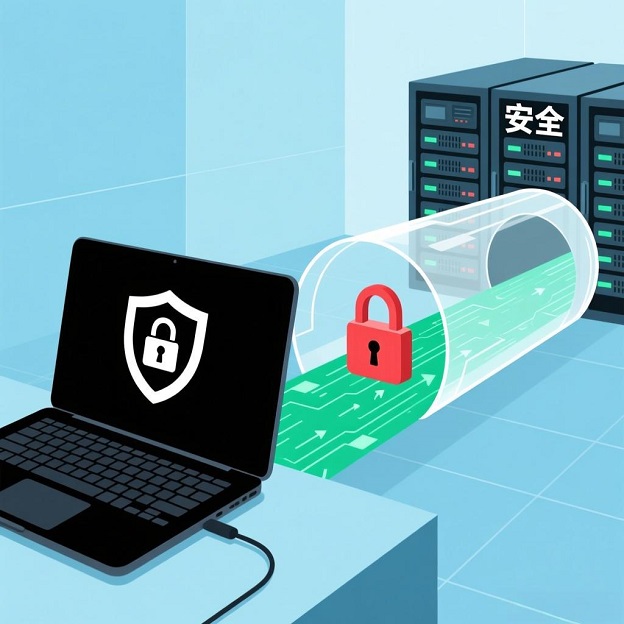
This is a powerhouse feature for creating secure "tunnels" for other applications.
Local Port Forwarding: Redirects a port on your local PC to a service on the remote server (e.g., access a remote database `localhost:3306`).
Remote Port Forwarding: Makes a service on your local machine accessible from the remote server.
Dynamic SOCKS Proxy: Creates a secure proxy tunnel for your web browser or other applications, routing traffic through the SSH server.
How to Use: Configure tunnels in the "Services" tab of the connection profile. This is invaluable for securely accessing web interfaces (like remote admin panels), databases, or internal network resources behind a firewall.
4. Connection Profiles and Automation
Bitvise excels at saving and automating complex connections.
How to Use: After configuring login details, authentication method, terminal settings, and active tunnels, save everything as a connection profile (`.bscp` file). You can then launch a fully pre-configured session with a double-click. For advanced automation, you can use the command-line client (`stermc.exe` or `sftpc.exe`) in scripts to execute remote commands or transfer files without any GUI interaction.
Pro Tips for Enhanced Workflow
Use Public Key Authentication: For both security and convenience, set up SSH key-based logins. Bitvise has a built-in tool to generate key pairs and install the public key on the server.
Master the "Quick Connect" Bar: For frequent ad-hoc connections, use the toolbar at the top to quickly enter host details and connect without loading a full profile.
Leverage Session Reconnection: If your network drops, Bitvise can often automatically reconnect and re-establish your SFTP session and tunnels, preserving your work context.
Explore the "Options": Dive into the extensive settings to customize terminal colors, font, bell sounds, SSH protocol preferences, and proxy configurations to tailor the client to your exact needs.
In-Depth Review: Strengths and Considerations
Strengths:
All-in-One Integration: The seamless blend of a robust terminal and a graphical SFTP client within one window is a major productivity booster, eliminating context switching.
Powerful Tunneling Engine: Its tunneling capabilities are both comprehensive and easy to configure, rivaling dedicated proxy tools.
Excellent Profile Management: The ability to save and instantly load complex setups (including tunnels) is a huge time-saver for professionals managing multiple servers.
Reliability and Performance: Known for stable connections and fast transfer speeds, even over high-latency links.
Free for Personal Use: Its feature-complete free tier for individual users is exceptionally generous.
Considerations:
Windows-Only: It is exclusively a Windows application. Users on macOS or Linux need alternative clients.
GUI-First Approach: While it has command-line tools, its primary interface is GUI-driven. Purists who live entirely in a terminal might prefer OpenSSH's native commands.
Initial Complexity: The wealth of options and tabs can be daunting for someone who just needs a simple SSH connection. However, basic connections are straightforward.
Target Audience & Final Verdict
Bitvise SSH Client v9.55 is ideally suited for:
Windows-based System Administrators and Network Engineers who need reliable, feature-packed remote access.
Web Developers who regularly transfer files to and interact with Linux hosting servers.
Security-Conscious Users who require encrypted tunneling to access resources securely.
Anyone who prefers a visual, integrated file transfer experience alongside their terminal.
Verdict: Bitvise SSH Client v9.55 stands out as a professional, polished, and incredibly capable SSH suite for Windows. Its integrated approach to terminal, SFTP, and tunneling sets a high standard. While beginners can use it for basic tasks, its true power is unlocked by power users and professionals who will appreciate the depth, reliability, and time-saving automation it offers. For secure remote access on Windows, it remains a top-tier choice.
Official Download Address:
You can download the latest version of Bitvise SSH Client (including v9.55) from the official website. Remember, it is free for personal use. Please visit:
https://www.bitvise.com/ssh-client-download.
For users who need to manage a large number of server keys and connections and are looking for a higher degree of automation, MobaXterm is also a feature-rich, integrated alternative. For in-depth privacy cleanup of your local system, you can refer to our PrivaZer guide.